UI Overview
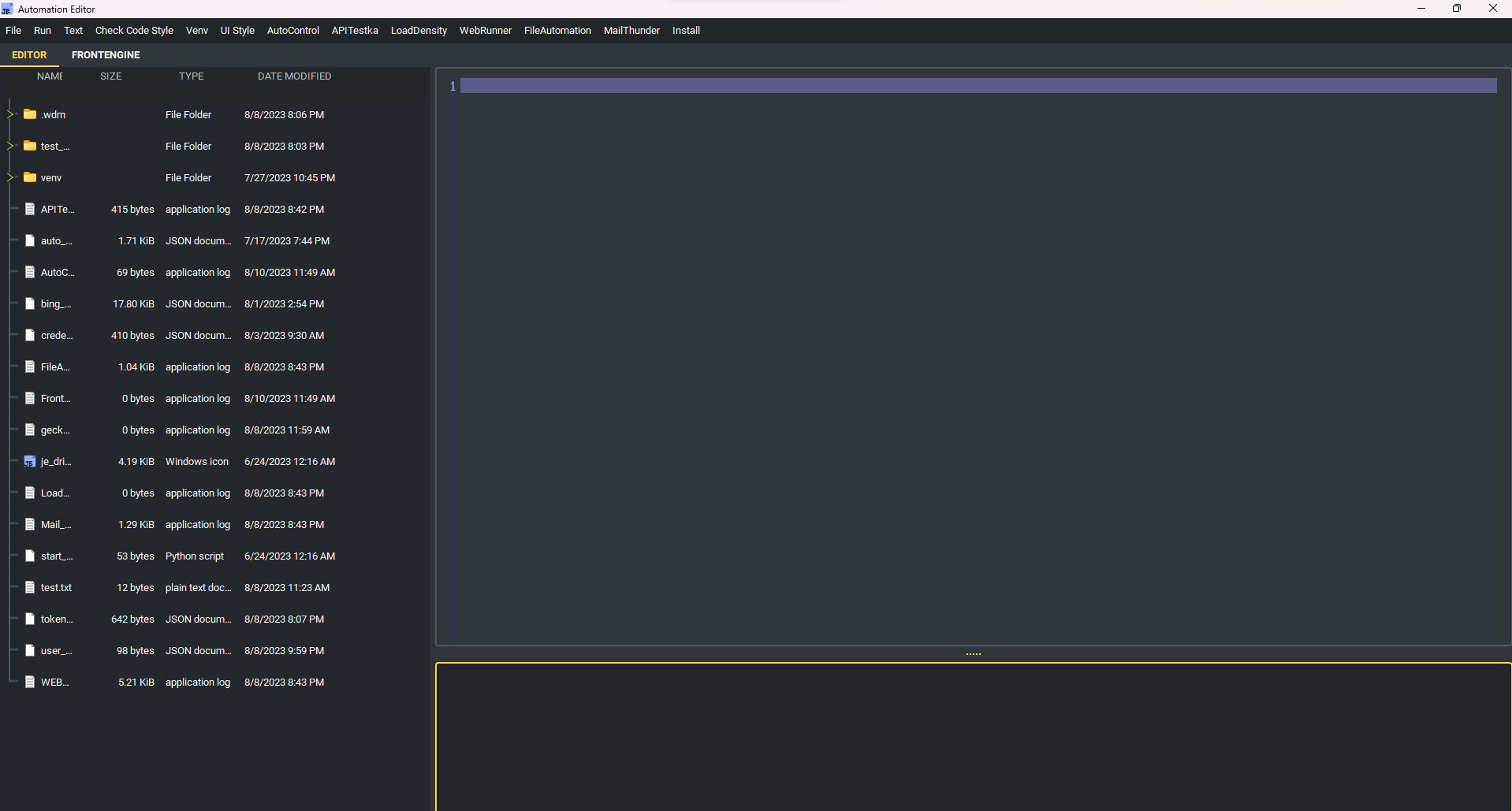
PyBreeze provides a tabbed, dock-based interface built on PySide6 (Qt for Python). The main window is composed of several key areas.
Main Window Layout
File Tree
Located on the left side of the window. Provides a file browser for navigating your project directory. You can:
Browse files and folders
Double-click to open files in the editor
Right-click any file or folder to access the context menu (see below)
Code Editor (Tab Widget)
The central area uses a tabbed interface. Each opened file gets its own tab. Additional tool tabs (SSH, AI, JupyterLab, automation GUIs) can also be opened here.
Features:
Syntax highlighting for Python and automation module keywords
Multiple file editing with tabs
Extendable with custom tabs via
EDITOR_EXTEND_TAB
Output Panel
Located at the bottom of the window. Displays:
Program execution output
Shell command results
Error messages
Code Output Window
When running automation scripts, a separate Code Output Window opens to display the execution results. This window:
Shows real-time output from subprocess execution
Is read-only
Sizes itself based on screen dimensions
Can be closed independently of the main window
Dock Widgets
Several tools can be opened as dock widgets instead of tabs, allowing you to arrange them freely around the main window:
SSH Client Dock
AI Code-Review Dock
CoT Prompt Editor Dock
Skill Prompt Editor Dock
Skill Send GUI Dock
Diagram Editor Dock
Dock widgets can be dragged, resized, and snapped to any edge of the main window.
Theme System
PyBreeze uses qt_material for theming. Available themes include:
dark_amber.xml(default)dark_teal.xmldark_blue.xmldark_cyan.xmldark_lightgreen.xmldark_pink.xmldark_purple.xmldark_red.xmldark_yellow.xmllight_amber.xmllight_blue.xmllight_cyan.xmllight_lightgreen.xmllight_pink.xmllight_purple.xmllight_red.xmllight_yellow.xml
You can switch themes via the UI Style menu in the menu bar, or set the theme at launch time:
start_editor(theme="dark_teal.xml")
Multi-Language Support
PyBreeze supports multiple UI languages:
English (default)
Traditional Chinese (繁體中文)
Additional languages can be added via plugins
All UI strings are managed through a centralized language dictionary that can be extended with custom translations.